



Why change Apache Port
By Default, Apache runs HTTP on port 80 and SSL on port 443 in XAMPP. Generally, you may need to change the port number for the following reasons :
- For customized network design.
- For security purposes.
- For resolving port conflicts with other applications.
For example, users commonly report a conflict between Skype and Apache both using port 80.
Checking port availability
Before you proceed, you should make sure that you have an available port and that the port you are choosing is free and not already occupied. Here is a list of a couple of tools you can use to find the status of ports on your localhost.
NetStat command on windows
On windows, you can use ‘netstat’ command to list active networks (incoming and outgoing) connections and listening ports. You can use the command with the following switches to print port status for your localhost:
netstat -ano- “a” will display all connections and listening ports.
- “o” will show the owning process ID that is related to each of the connections.
- “n” will show the addresses and port numbers as numerals.

XAMPP’s in-built NetStat tool
If you prefer, you can use the ‘NetStat’ tool built inside the XAMPP itself. Behind the scene, it probably uses the same windows command and the output is almost the same as the native ‘NetStat’ command in windows.

Windows Resource Monitor
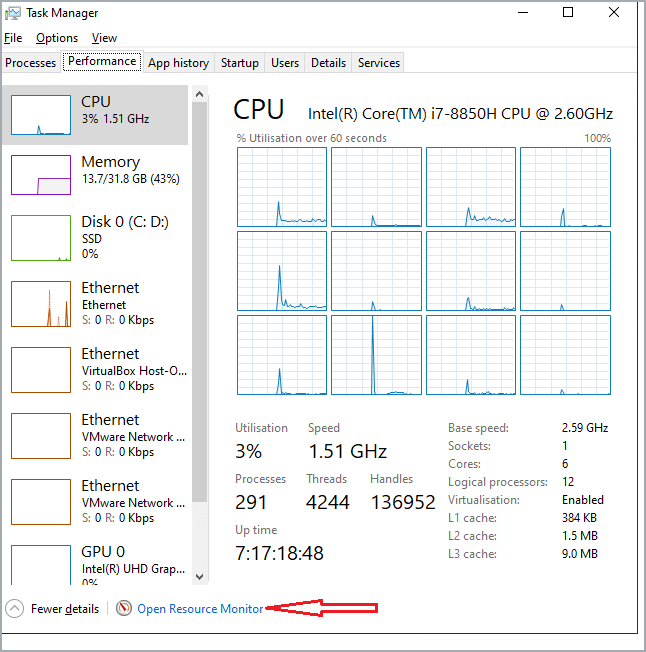
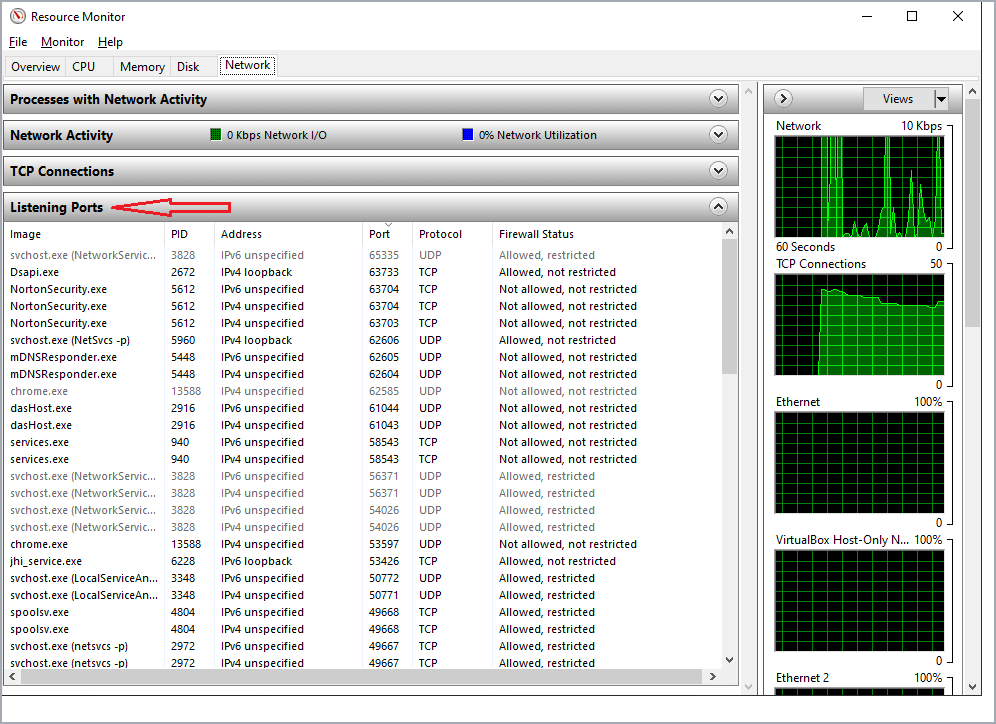
The third option if you prefer is the windows ‘Resource Monitor’. You can launch the ‘Resource Monitor’ via the ‘Task Manager’ as shown in the below screenshot. Once you have launched ‘Resource Monitor’, you can view the port availability status under the ‘Listening Ports’ tab.
Changing Apache HTTP port
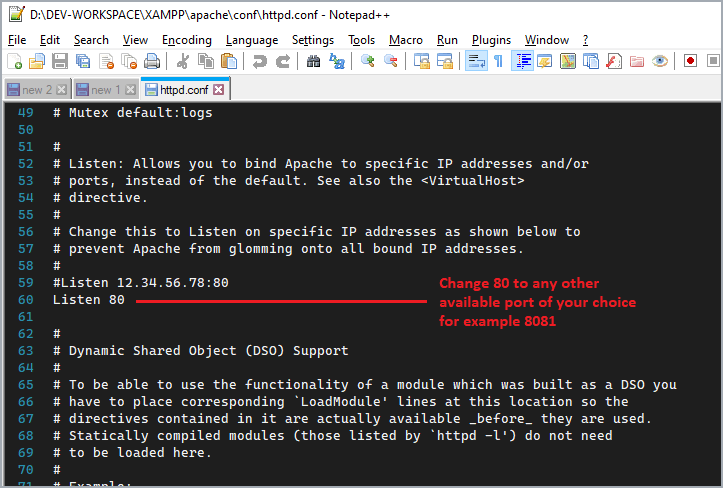
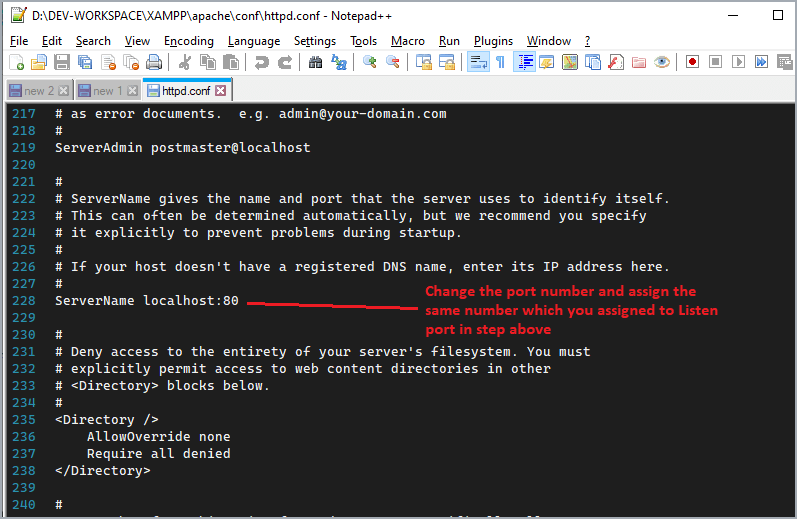
Edit the ‘httpd.conf’ file usually located inside “XAMPP\apache\conf\” on windows and make the following changes.
HTTP Listen Port
Current configuration
New configuration
HTTP ServerName and Port
Current configuration
New configuration
Changing Apache HTTPS (SSL) Port
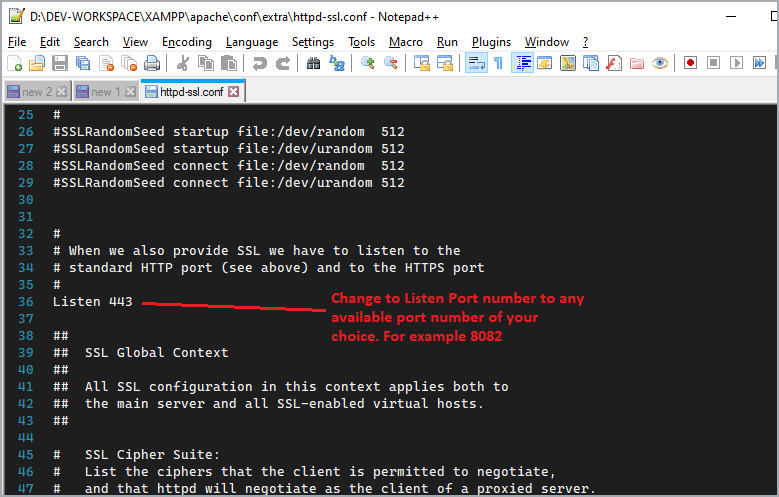
Edit the ‘http-ssl.conf’ file usually located inside “XAMPP\apache\conf\extra” on windows and make the following changes
HTTPS Listen Port
Current configuration
New configuration
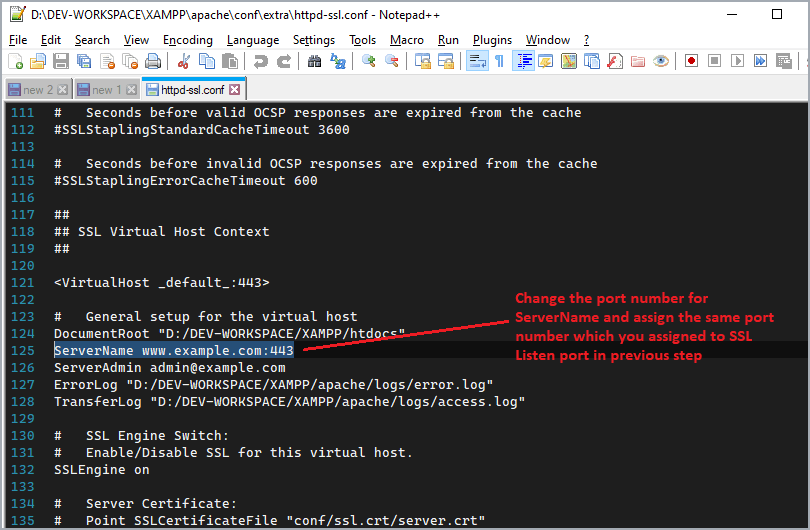
HTTPS ServerName and Port
Current configuration
New configuration
VirtualHost Directive for httpd-ssl
Current configuration
New configuration

Changing Ports for VirtualHosts
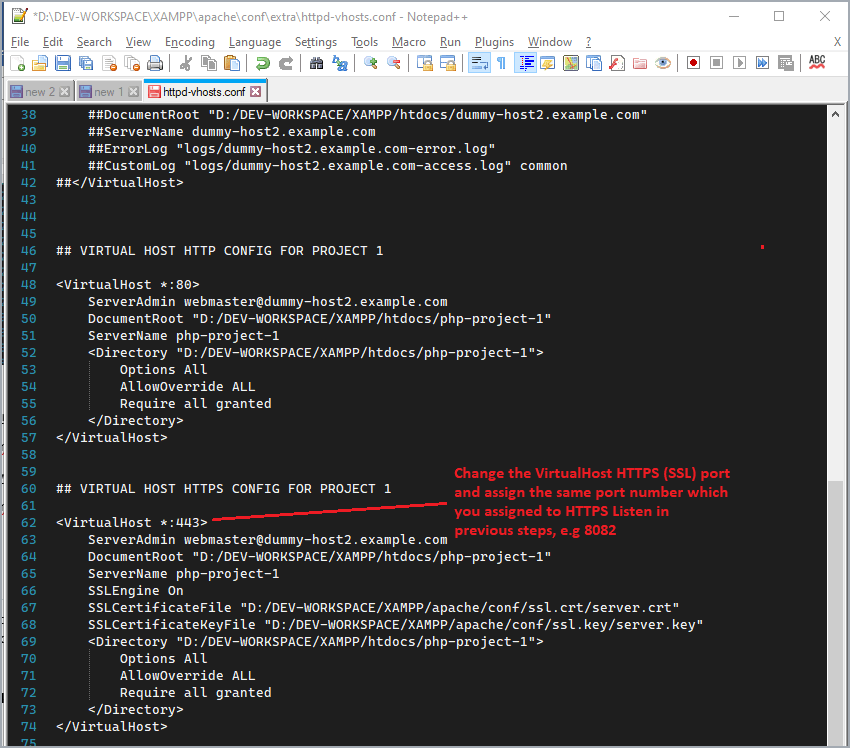
Edit the ‘httpd-vhosts.conf’ file usually located inside “XAMPP\apache\conf\extra” on windows and make the following changes:
HTTP Virtual Host URL
Current configuration
New configuration

HTTPS (SSL) Virtual Host URL
Current configuration
New configuration
Changing HTTP/HTTPS in XAMPP Panel
Now, we need to also update the above port numbers in XAMPP configuration, so that both XAMPP and Apache are able to communicate over the right port numbers. For this, do the following:
Launch XAMPP Configuration from XAMPP Control Panel
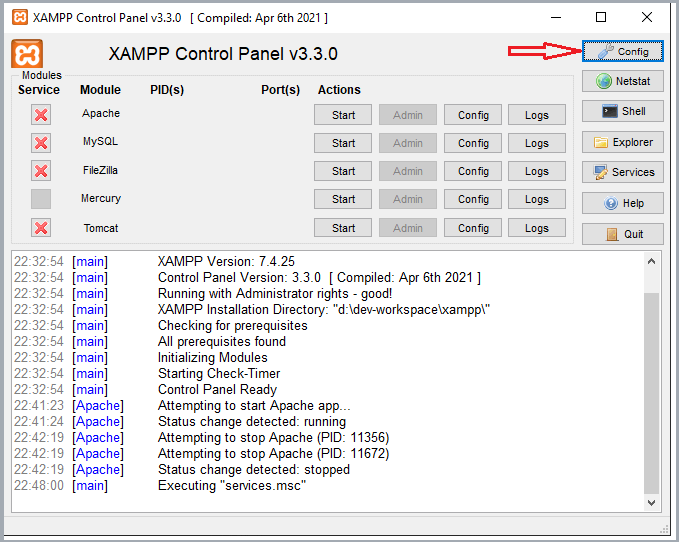
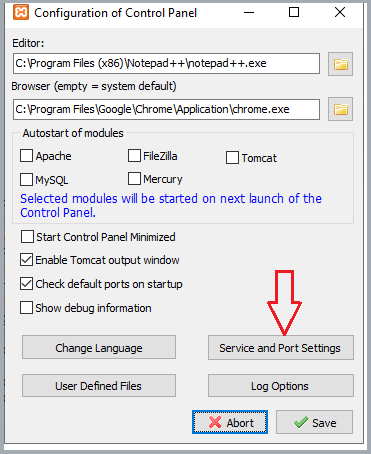
From the ‘Configuration of Control Panel’ window click ‘Service and Port Settings to launch ‘Service Setting’
On the ‘Service Settings’ window, enter Main Port and SSL Port number as set in previous steps. In our example here these would be Main Port: 8081 and SSL Port 8082.
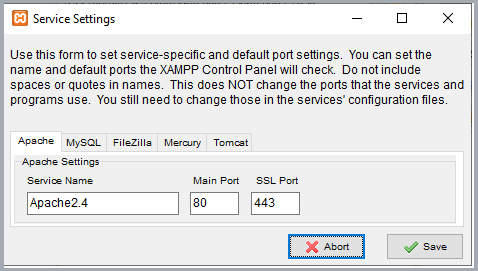
Make HTTP and HTTPS port changes Click Save to save service settings

RESTART THE APACHE SERVICE! DONE!