



This article shows how to change the text size and style for the Eclipse editor pane.
The font used for Eclipse editor pane can be customized with font preference. This preference is located under “Basic” settings and can be found in Window > Preferences > General > Appearance > Colors and Fonts.
1Open Eclipse Preferences
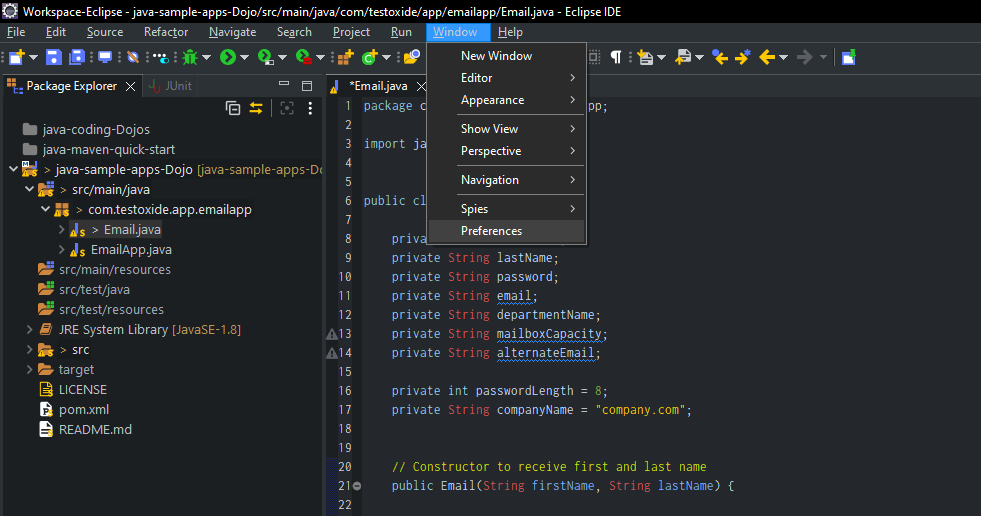
Open the Eclipse Preferences via Window > Preferences
2Navigate to Colors and Fonts
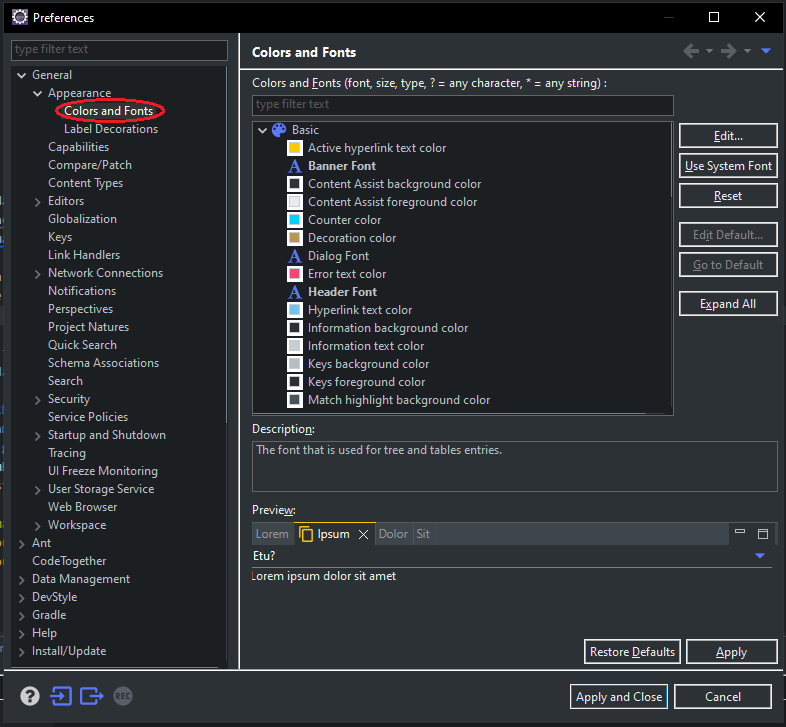
Navigate to ‘Colors and Fonts’ on the left-hand side preferences tree view
3Basic Color and Font Settings
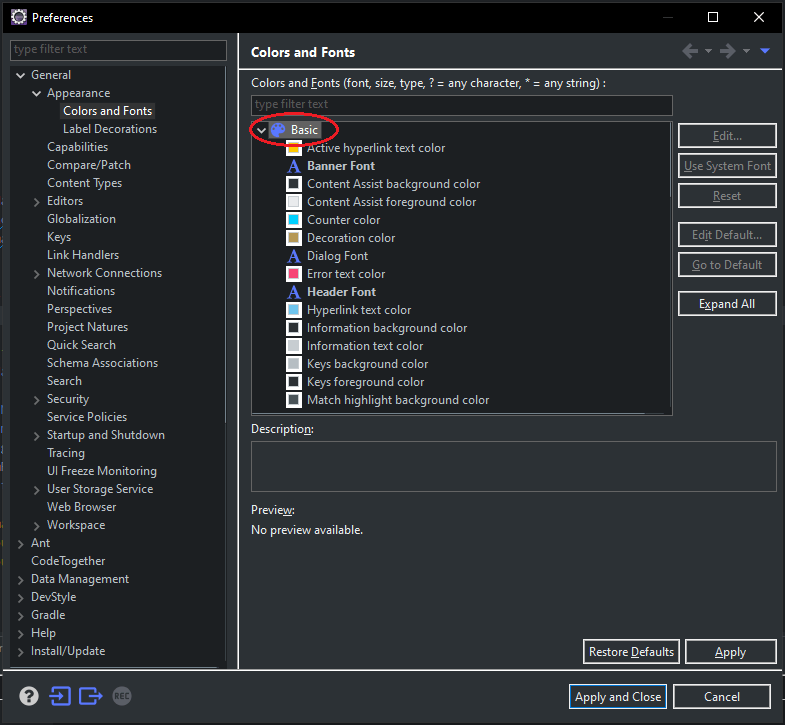
On the right-hand side pane, scroll and locate ‘Basic’
4Text Font Settings
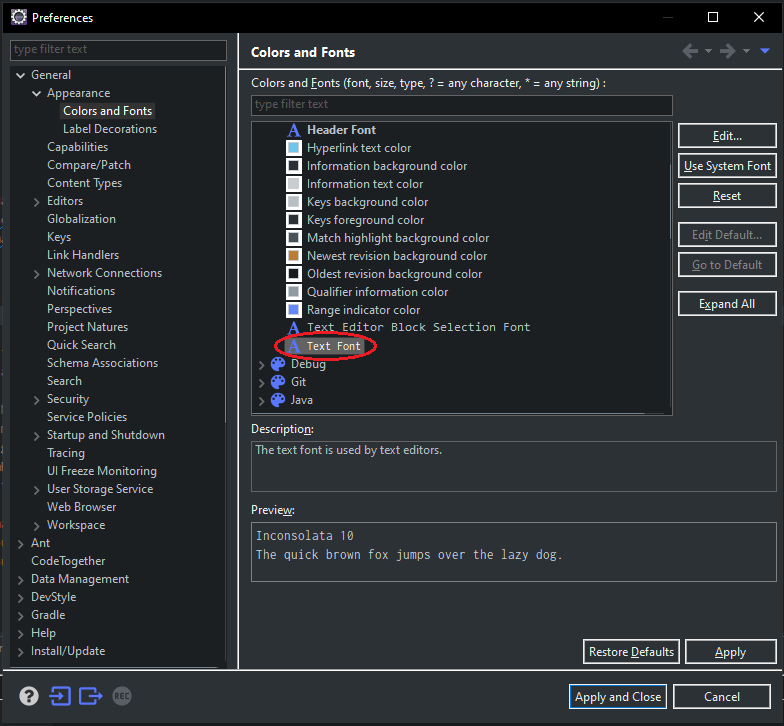
Scroll down to ‘Text Font’ under ‘Basic’
5Edit and Set Desired font and styling
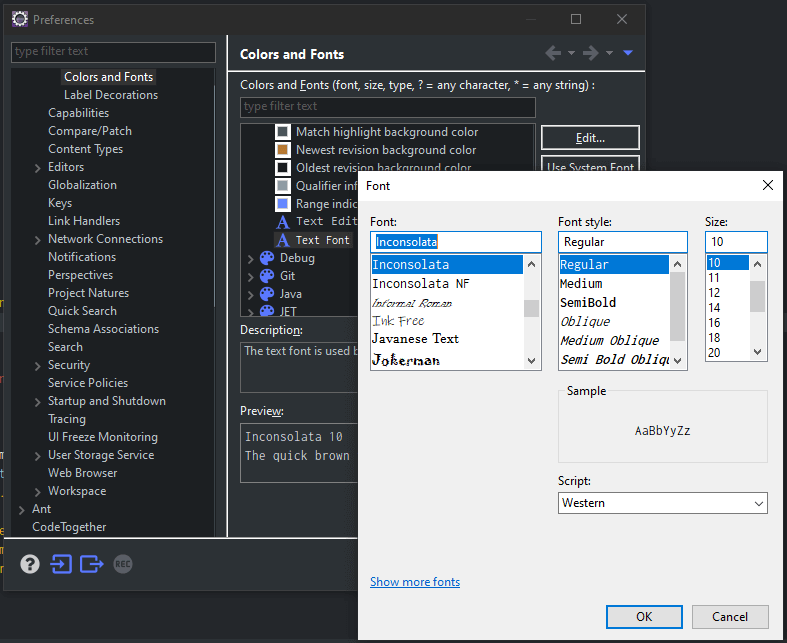
6Click Apply and Close to Save your Settings. DONE!
Re-launch the Eclipse if your changes are not visible.