




I’m going to explain in this tutorial about the usage of the findElement and findElements method of Selenium Webdriver on the Chrome web browser. The findElement method is used when you want to deal with one HTML element on a website. On the other hand, the findElements method is used when you want to deal with more than one HTML element.
In brief, the findElement method returns a single element, and the findElements method returns an array of elements.
We will choose a dynamic website – “BBC News”, to explain this concept in a real scenario. We will use the findElement method to display the headlines of the webpage and we will use findElements methods to display the menu items.
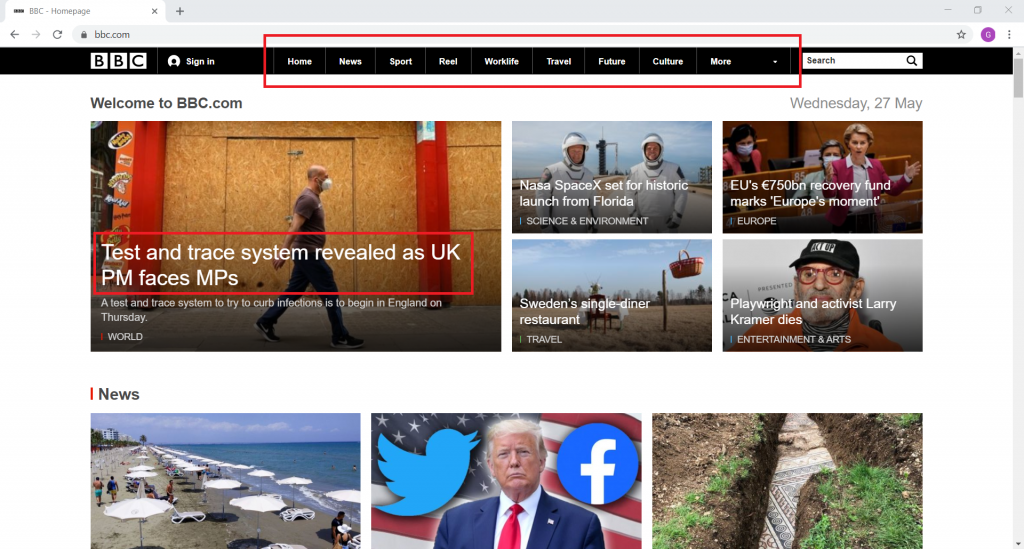
First, let’s have a look at the web page to analyze the HTML code and select the necessary attributes.

We can see that the news headline text appears within the block-link__overlay-link class.

The menu items are within anchor tags, which displays as a list inside a div tag. To acquire the menu item text, we need to reference an attribute that points towards all of them. However, the anchor tags are inside the list tags which we can’t address in common.
The div tag has a unique ID that we can use to capture the div. After capturing the div, We will be accessing the UL tag. However, We need to have some techniques to access the <a> tag inside the <ul> list(Example is shown below).
A Sample Program
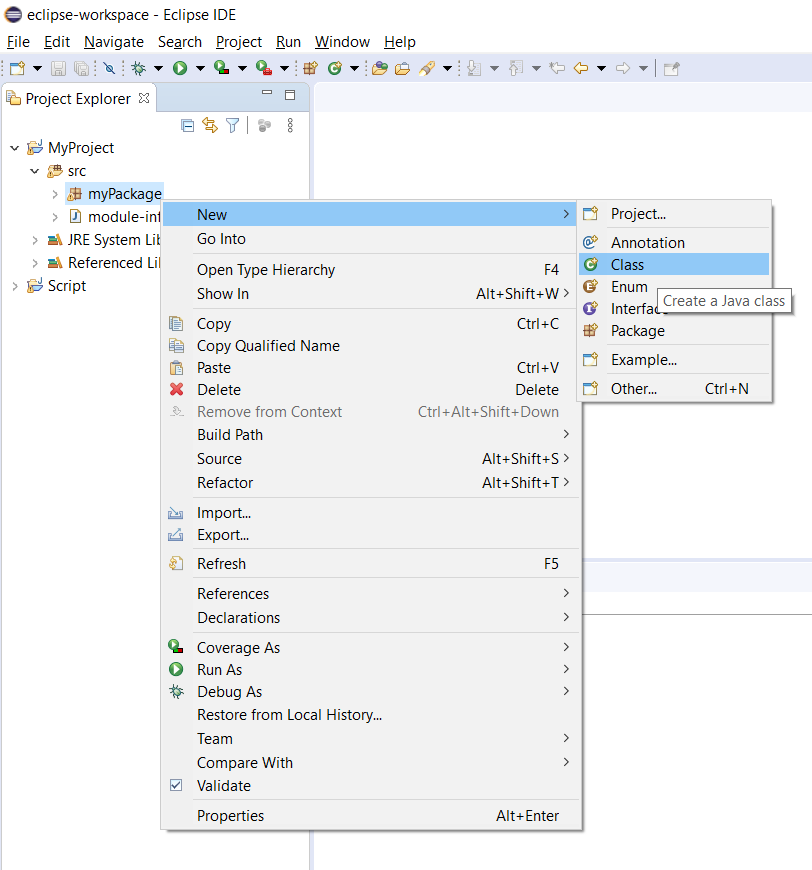
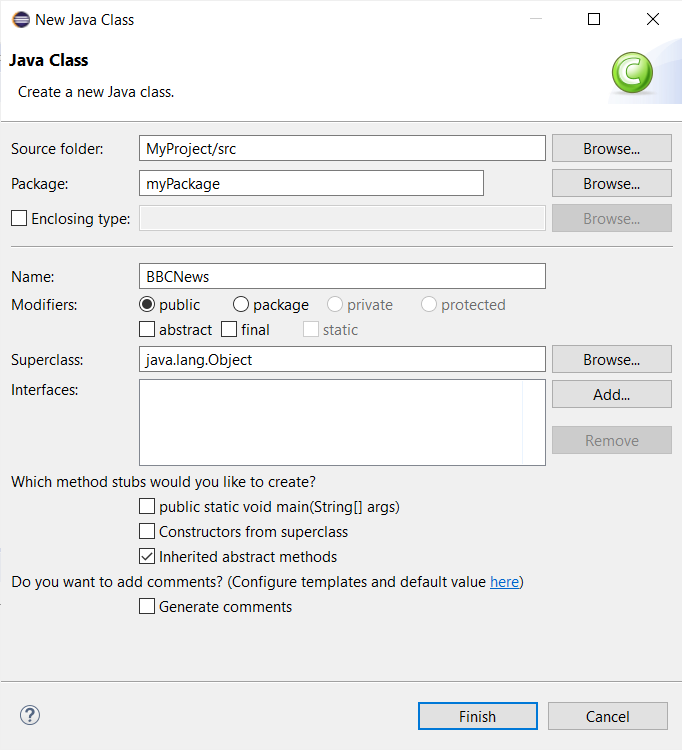
Now let’s program to demonstrate the above concept using Java language. First, open the Eclipse IDE and create a new class and name it as BBCNews.
Next, we will import the necessary libraries.
import java.util.List;
import org.openqa.selenium.By;
import org.openqa.selenium.WebDriver;
import org.openqa.selenium.WebElement;
import org.openqa.selenium.chrome.ChromeDriver;
Next, we will instantiate the Chrome WebDriver. For this purpose, we need to set the system property which points to the location of Chrome WebDriver. Then we have to instantiate a WebDriver element (from org.openqa.selenium.WebDriver library) to the Chrome web browser
System.setProperty("webdriver.chrome.driver", "D:\\Chromedriver\\chromedriver.exe");
WebDriver driver=new ChromeDriver();
After that, we will assign the URL of the BBC News website to the Chrome WebDriver.
driver.get("https://www.bbc.com/");Now let’s see how to grab the headline on the webpage using the findElement method. First, we will create a WebElement (from org.openqa.selenium.WebElement library) to store the headline element.
The findElement and findElements methods can return the elements in the following ways:
- className – returns elements using class attributes.
- id – returns elements using the id attribute
- name – returns elements using the name attribute
- CSS selector – returns elements using CSS Selector Pattern
- link text – returns elements using the visible text within the tags
- Partial link text – returns elements using the text of an attribute inside the tag
- tagName – returns elements using the tag
- XPath – returns elements using the xpath
Obtaining the element using className would be ideal, as the class attribute is available within the anchor tag that holds the headline.
WebElement element = driver.findElement(By.className("block-link__overlay-link"));Finally, let’s see how to get the menu items using findElements method. We will create a list of WebElements to store all the menu items. You can use the cssSelector or xpath. But, we will use a special technique to combine both findElement & findElements methods.
We will locate the div tag using the findElement method and then, we will grab all the anchor tags which hold the menu items using the findElements method.
List<WebElement> elements = driver.findElement(By.id("orb-nav-links")).findElements(By.tagName("a"));We can finally print all the elements using a ‘for loop’. When printing the elements we will use the getAttribute(“innerHTML”) so that it prints the text inside the HTML tag!
You can see the entire program as below :
package myPackage;
import java.util.List;
import org.openqa.selenium.By;
import org.openqa.selenium.WebDriver;
import org.openqa.selenium.WebElement;
import org.openqa.selenium.chrome.ChromeDriver;
public class BBCNews {
public static void main(String[] args) {
    	System.setProperty("webdriver.chrome.driver", "D:\\chromedriver_win32\\chromedriver.exe");
   	WebDriver driver=new ChromeDriver();
   	driver.get("https://www.bbc.com/");
   	WebElement element = driver.findElement(By.className("block-link__overlay-link"));
	System.out.println("Headline: " + element.getText());
   	List<WebElement> elements = driver.findElement(By.id("orb-nav-links")).findElements(By.tagName("a"));
	for (int i=0; i<elements.size();i++){
		System.out.println(elements.get(i).getAttribute("innerHTML"));
	}
	}
}
Conclusion
We hope this article helps to understand how both findElement & findElements methods work in different ways. We hope you apply the same concepts to other webpages and come up with new ideas to automate with Selenium WebDriver.