

How to View Java API Doc Hints within IntelliJ

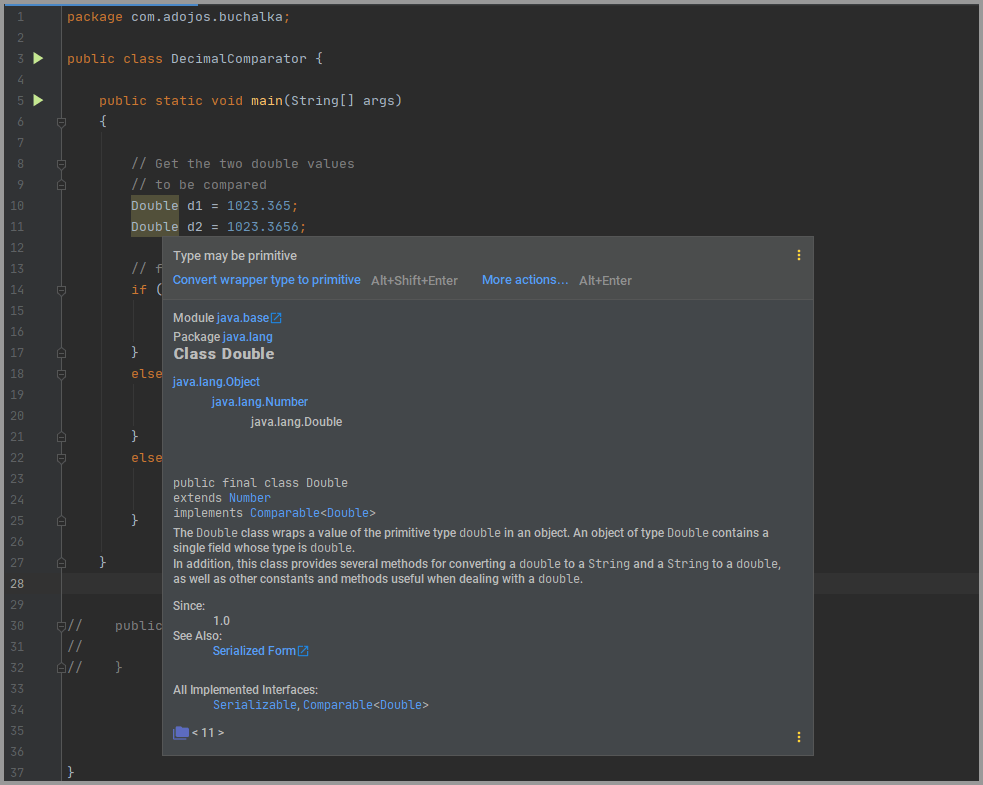
IntelliJ ‘Quick Documentation’ Feature. [Ctrl+Q or (View | Quick Documentation)]

IntelliJ Quick Documentation

So how do you generally refer your Java API Doc? If you use Google or online Java API Doc or even a locally downloaded copy then here is a better way, why not view the JavaDoc hints within IntelliJ editor itself. The article below shows the quick and easy procedure to do this, interested? keep reading.

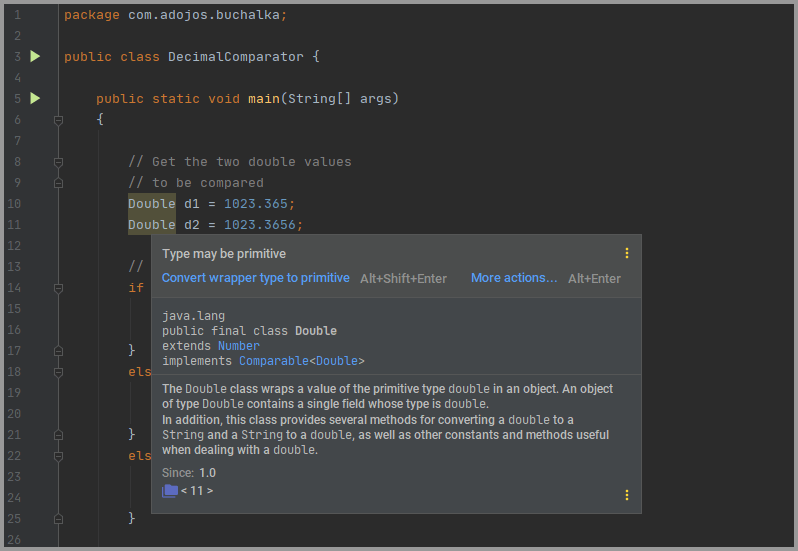
Provided you are using Java SDK, In IntelliJ IDEA, you can view Java API Doc (SDK) for any symbol or method signature right from the editor via IntelliJ feature also called ‘Quick Documentation’ which you can invoke via keyboard shortcut Ctrl+Q

blank

This feature should be enabled by default, if not here is how to enable it.

Enabling IntelliJ ‘Quick Documentation’

1
Open IntelliJ Settings

blank

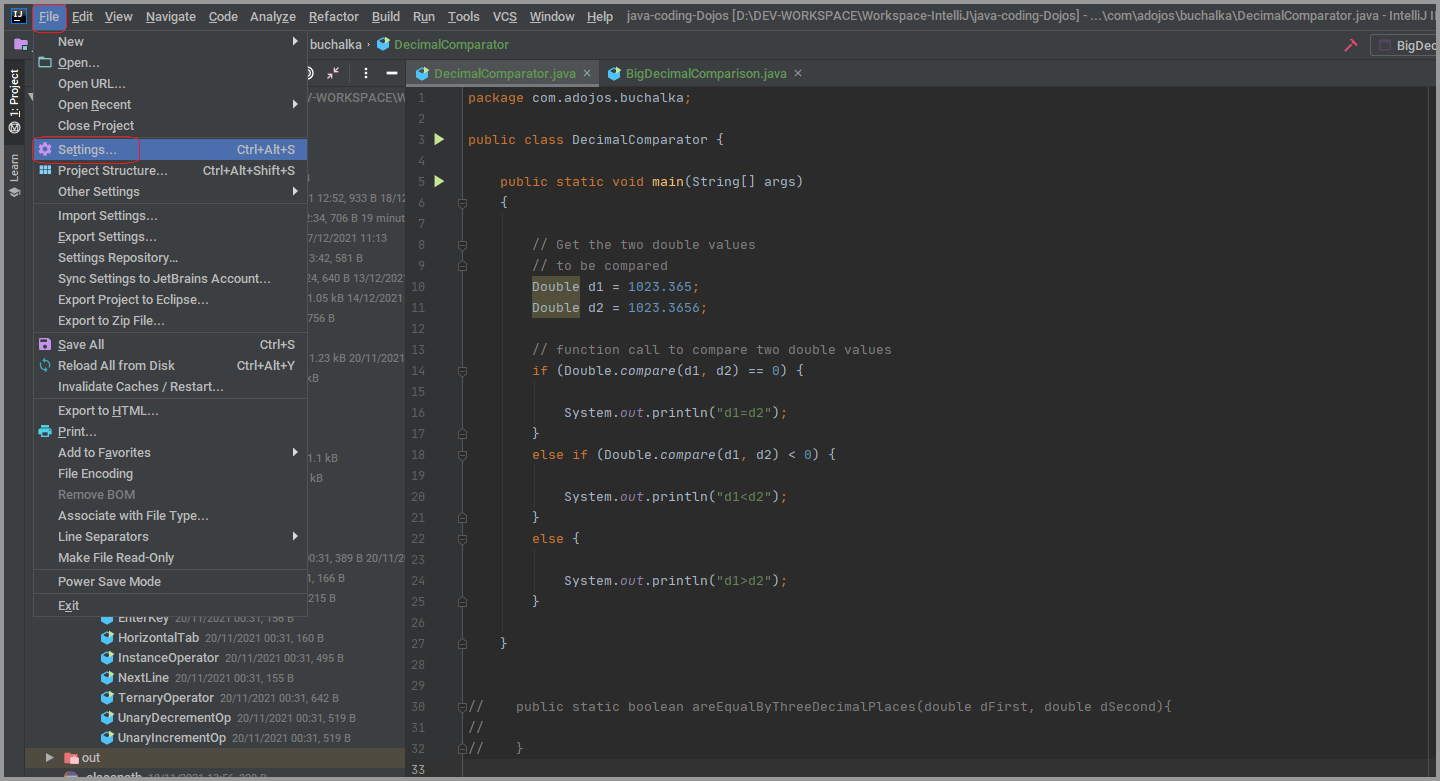
Launch the IntelliJ settings by navigating to [File | Settings]

2
Enable ‘Show documentation popup’

blank

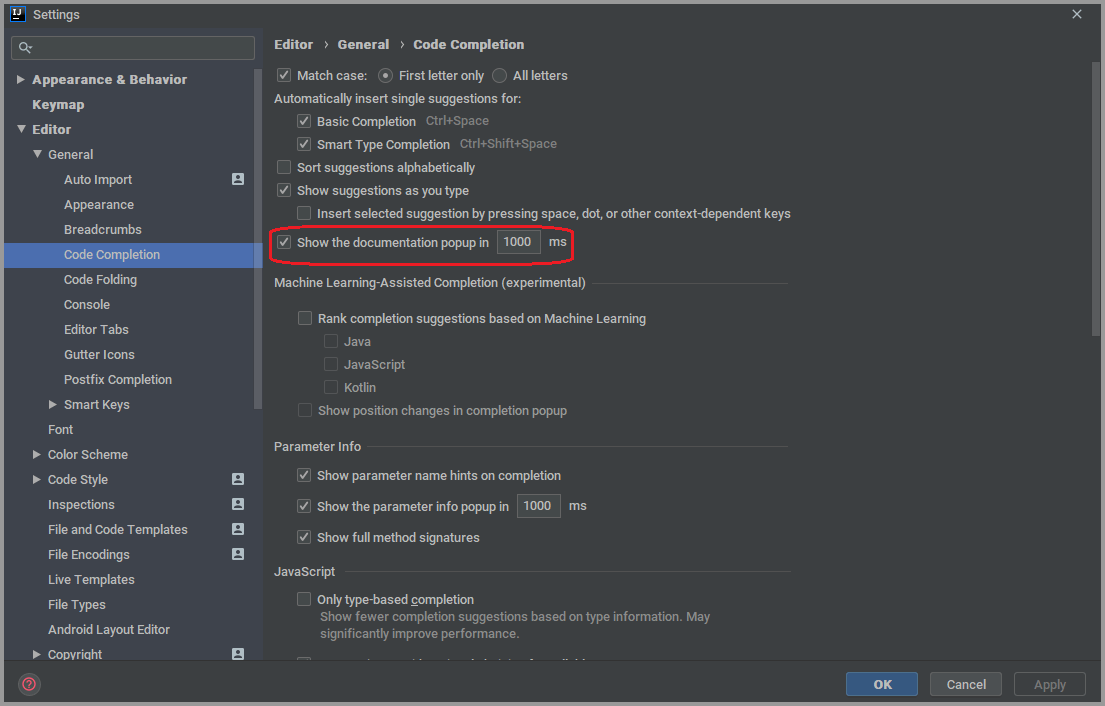
On the settings dialog box, navigate to [Editor | Code Completion] and enable the option ‘Show the documentation popup in 1000ms’ (Of course you can input whatever time value you wish) and click ‘Apply’

3
Enable ‘Documentation on mouse move’

blank

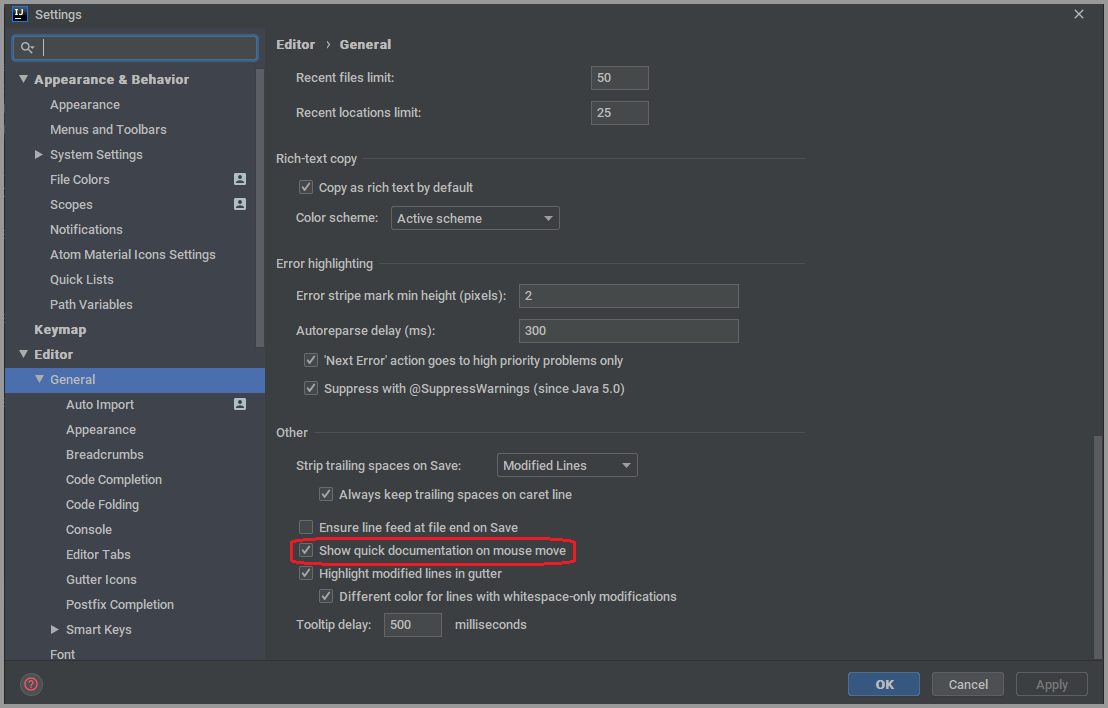
While on settings dialog box again navigate to [Editor | General] and enable the option ‘Show quick documentation on mouse move’. Click ‘Apply’ and ‘OK’.

4
Validate your changes

blank

Check by invoking the ‘Quick Documentation’ for any piece of code by pressing Ctrl+Q while in the editor

Enhance by adding documentation URL

You can add online java SDK documentation to your IntelliJ ‘project settings’ so that you can get more enhanced information about classes, symbols and method signatures etc.

5
Locate Javadoc online documentation

blank

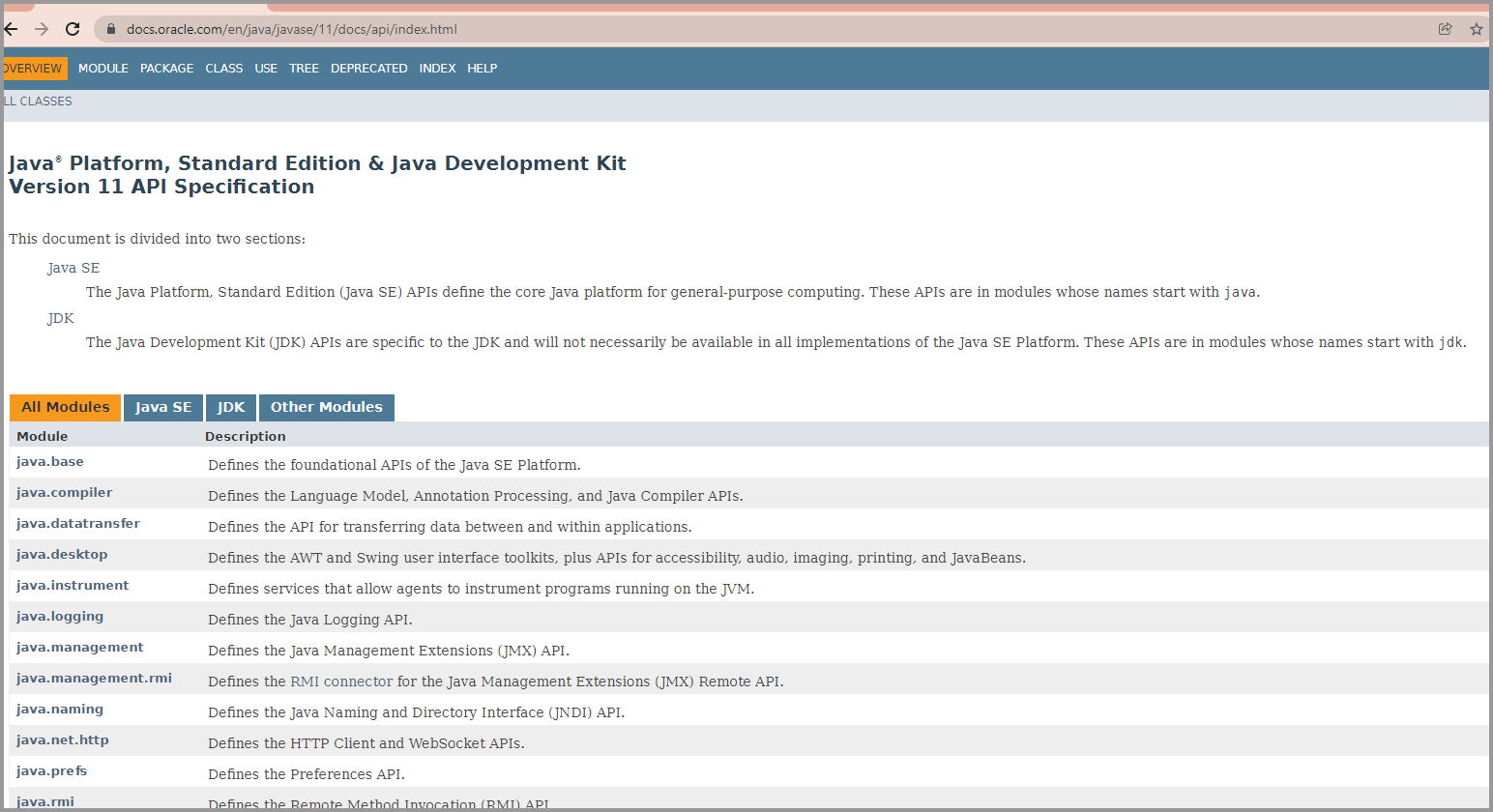
Locate the URL for your JavaDoc online. For example, the URL for Java 11 Java API Doc is – https://docs.oracle.com/en/java/javase/11/docs/api/index.html

6
Open ‘project settings’ dialog box

blank

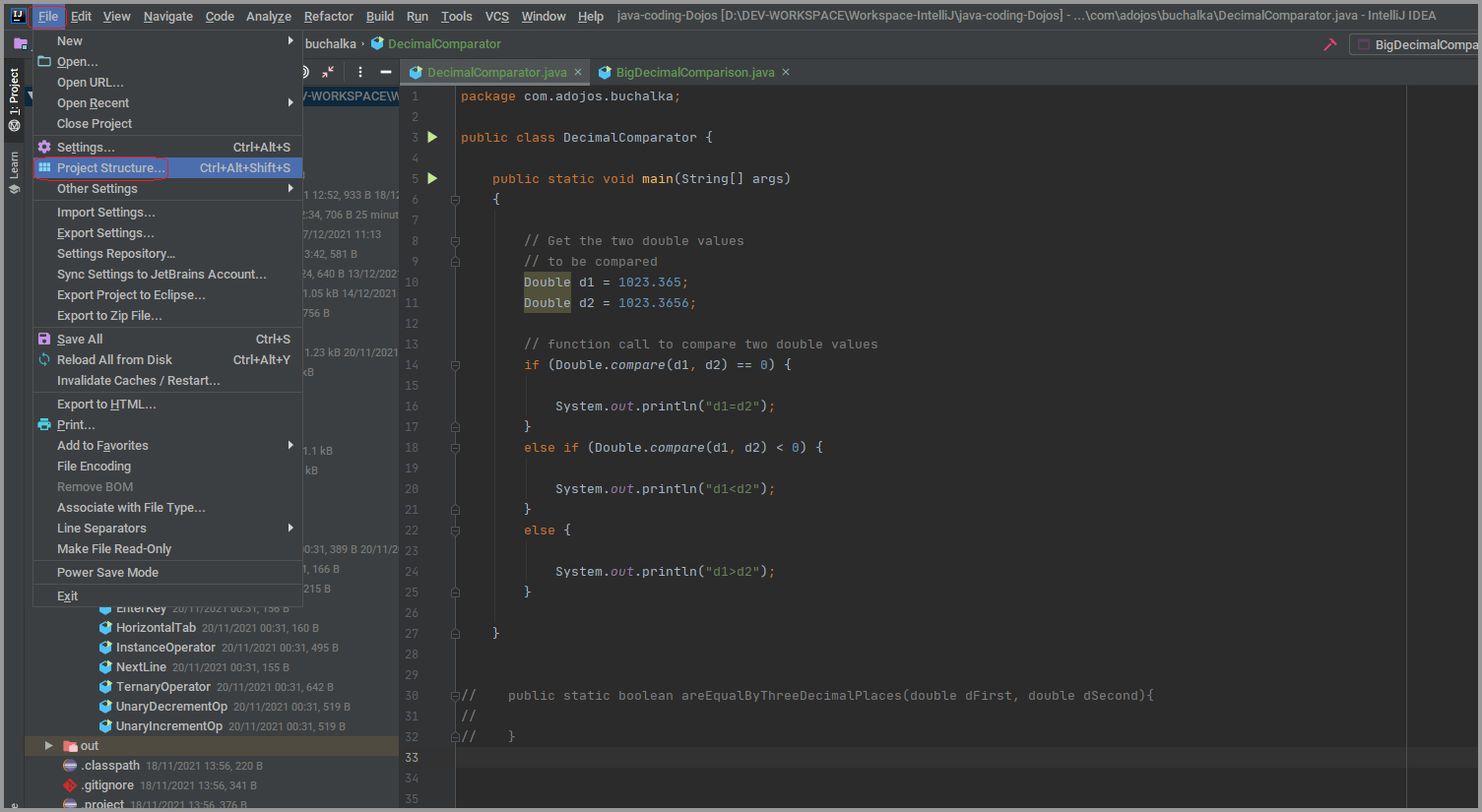
On IntelliJ, launch the project settings [File | Project Structure]

7
Open SDK documentation tab

blank

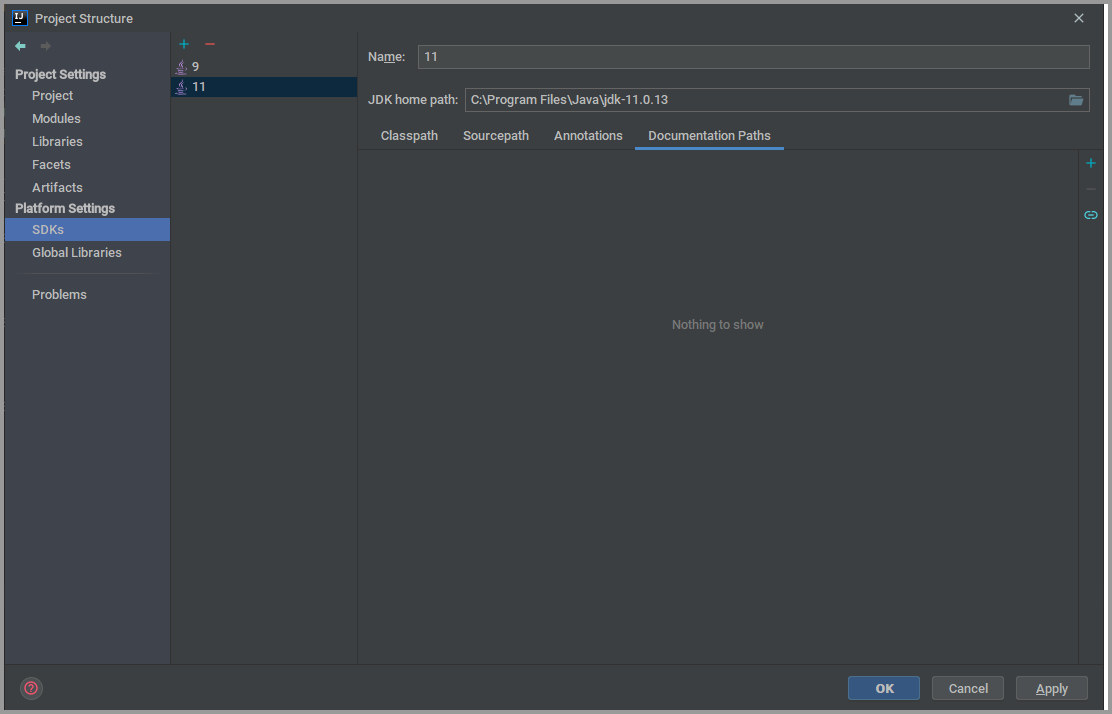
On ‘project structure’ dialog box, click on ‘SDKs’ on right hand side column and then click on ‘Documentation Paths’ tab in right hand side pane

8
Add documentation path/url

blank

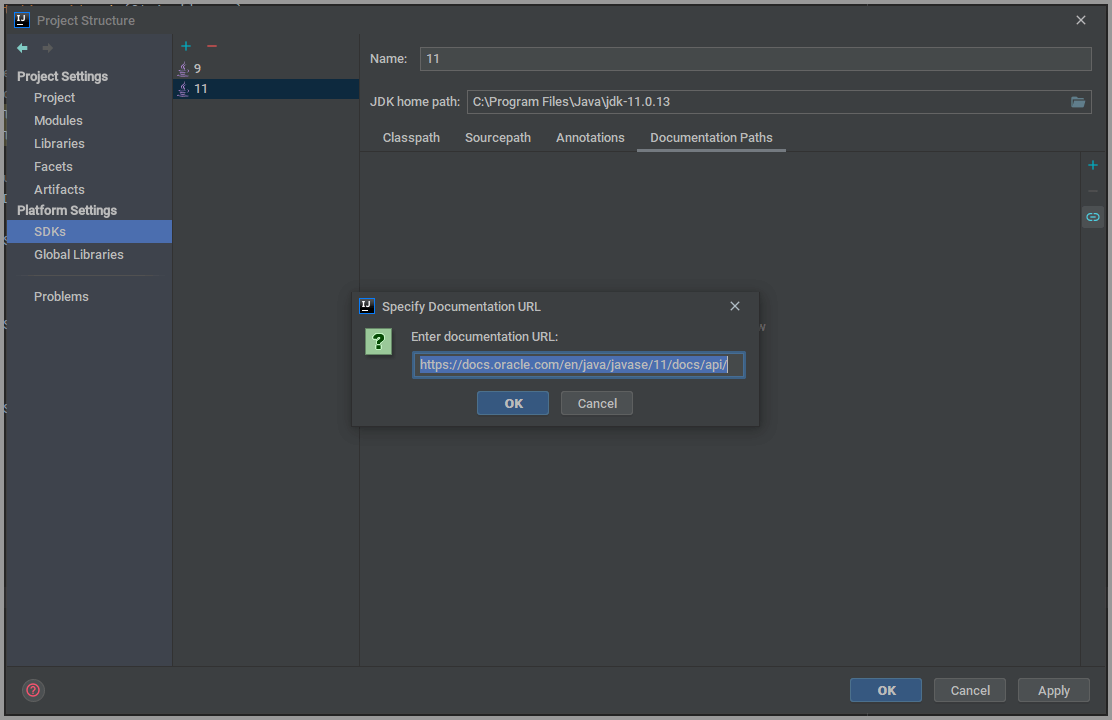
Now add the documentation url. Click ‘Ok’ and save. That’s it!

9
Validate your changes

blank

Check by invoking the ‘Quick Documentation’ for any piece of code by pressing Ctrl+Q while in the editor.

Tushar Sharma
Tushar Sharmahttps://www.automationdojos.com
Hi! This is Tushar, the author of 'Automation Dojos'. A passionate IT professional with a big appetite for learning, I enjoy technical content creation and curation. Hope you are having a good time! Don't forget to subscribe and stay in touch. Wishing you happy learning!

LEAVE A REPLY

Please enter your comment!
Please enter your name here

This site uses Akismet to reduce spam. Learn how your comment data is processed.

Recent Posts

RELATED POSTS

Shortcut To Auto-Insert ‘main’ Method in IntelliJ

IntelliJ Live Templates Live templates let you insert frequently-used or custom code constructs into your source code file quickly and efficiently IntelliJ IDEA comes with a...

How To Add SSH Private Keys to Eclipse

One of the common use cases for accessing Git repositories on Github is authentication via SSH keys. This offers a secure way of working...

How To Change Font for Eclipse Editor Pane

This article shows how to change the text size and style for the Eclipse editor pane. The font used for Eclipse editor pane can be...

How To Change Font for Eclipse Package Explorer

This article shows how to change the Package Explorer text size and style. The font used for tree and table views can now be customized...

Â

RECENT 'HOW-TO'

How To Install Oh-My-Posh On Windows PowerShell

Oh-My-Posh is a powerful custom prompt engine for any shell that has the ability to adjust the prompt string with a function or variable. It does not...

MORE ON CODEX

FEATURED PROJECTS

SEPA Bulk File Generator and Validator

ADjo LABS PROJECT: SEPA Bulk File Generator and Validator. Supported File Types PAIN008, PAIN001, PACS003 and PACS008. Tested for supporting PAIN.008.001.001 and PAIN.008.001.002 (version 1&2). The XML...

MORE IN THIS CATEGORY

How To Do Database Testing with JMeter

Introduction In this 'How-To', You will be guided to perform a database load test using JMeter. We will be installing Apache JMeter to perform the...

How To Customize GitBash For Windows

By default the GitBash prompt settings / configuration come from shell script called 'git-prompt.sh'. This is usually hosted inside 'profile.d' directory inside the GitBash...

How To Install XAMPP on Windows

What is XAMPP The full form of XAMPP stands for Cross-platform, Apache, MariaDB (MySQL), PHP and Perl. It is one of the simplest and lightweight...

How To Remove Duplicates From List in Java

Introduction A List is an interface in the Java collection framework which can be used to store a group of objects. A List is ordered...

CHECKOUT TUTORIALS

Working with Selenium WebElements

Table of Contents 1. Selenium WebElements 2. WebElement Locators 3. Working With Text Box 4. Working With Buttons 5. Checkboxes and Radio Buttons 6....
- Advertisement -spot_img